
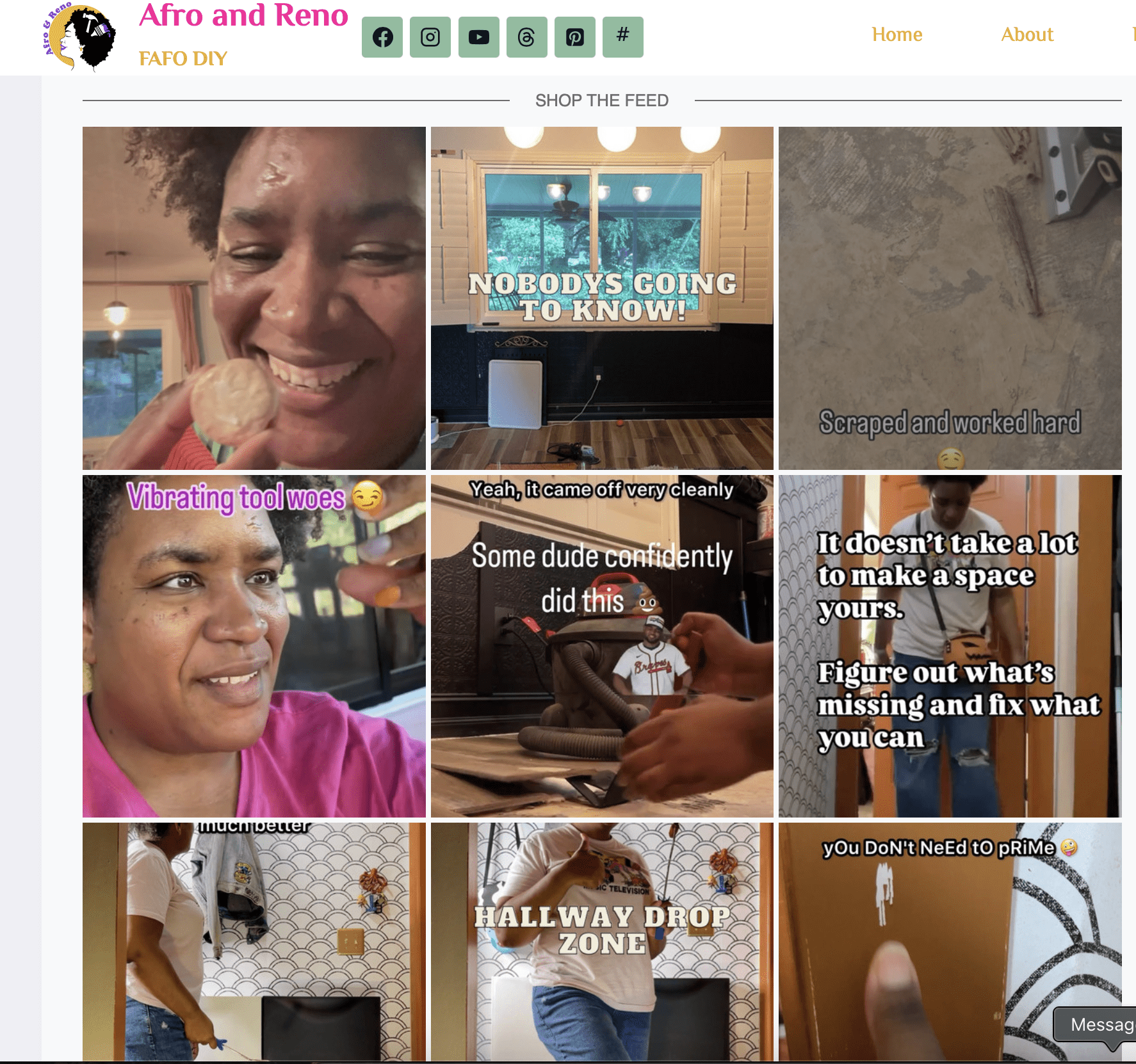
It’s easy to to show your LTK posts on your feed
There are lots of ways to display your favorite products from LTK on your website! You can generate a widget… all you need is a WordPress website, the ability to install plugins and a creator account on LTK! The best part is that it Auto Updates! You never have to touch the widget again to show your latest finds!
Pre-requisites:
- Ability to create a page on your site
- Admin WordPress account for the site
- Creator account on LTK
- Ability to install plugins (on WordPress.com this is a Business and up tier hosting plan)
Step 1: Install the LTK Plugin on Your Website
WordPress: download plug-in
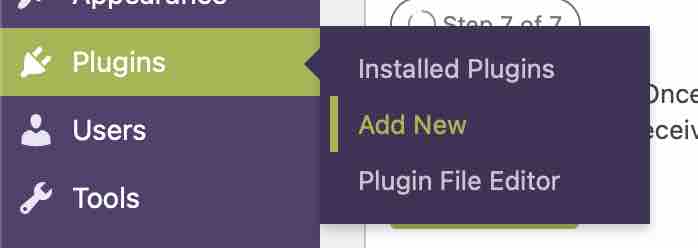
To install the widget go to:
- Plugins > Add new
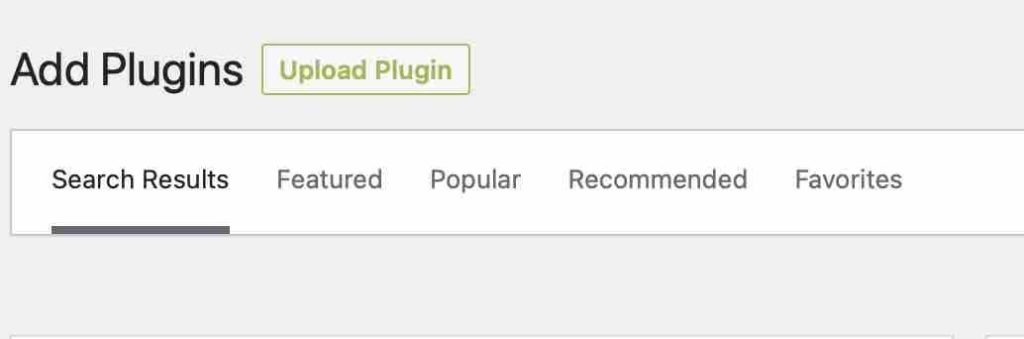
- On the plugin page click “Upload Plugin”
- Select your plugin
- Install and activate plugin
Step 2: Create Your LTK Widget
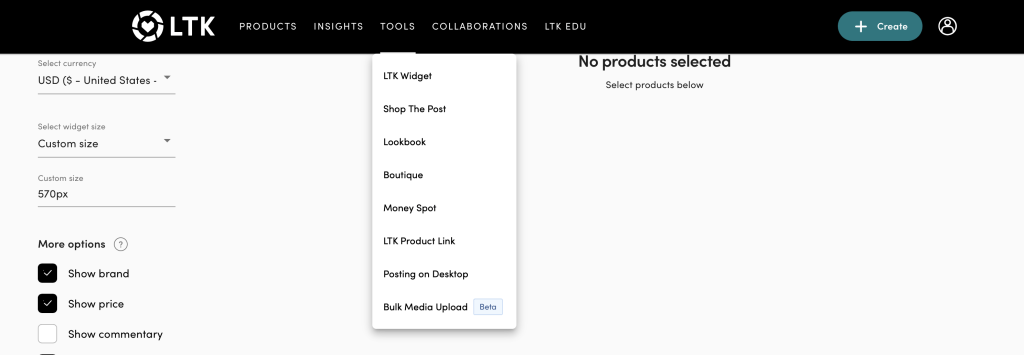
- Login. to your LTK creator account
- On the top menu click on “Tools and select “LTK Widget”
- OR Go to: https://creator.shopltk.com/web/apps/ltkwidget
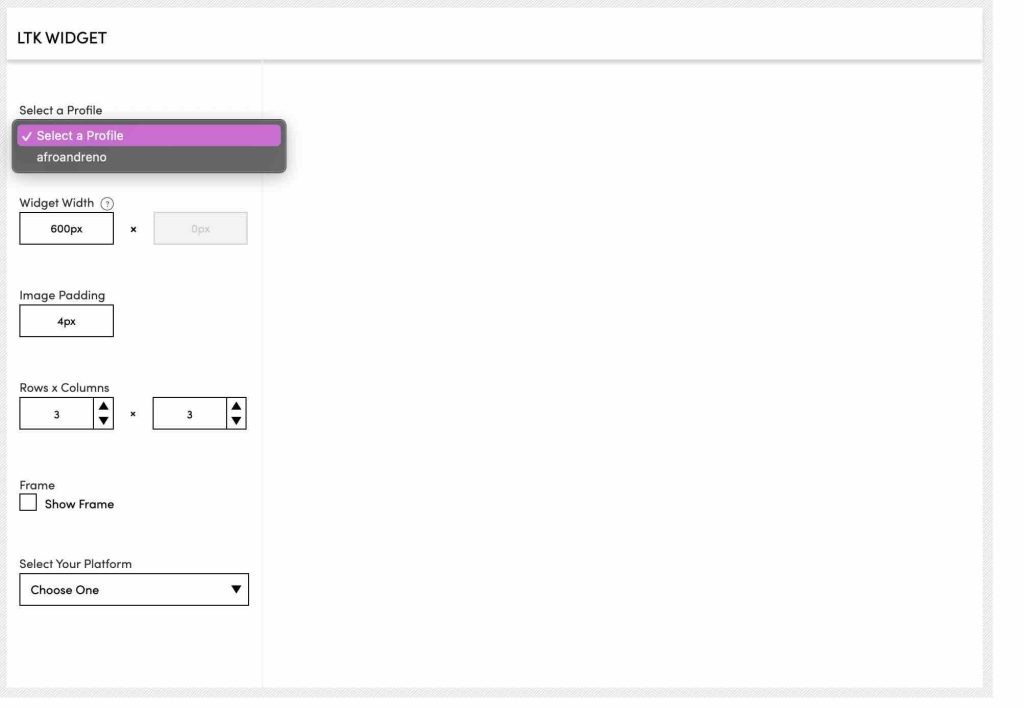
- Customize your widget
- Choose Size, width, columns etc
- Select your platform as ” WordPress” if using wordpress
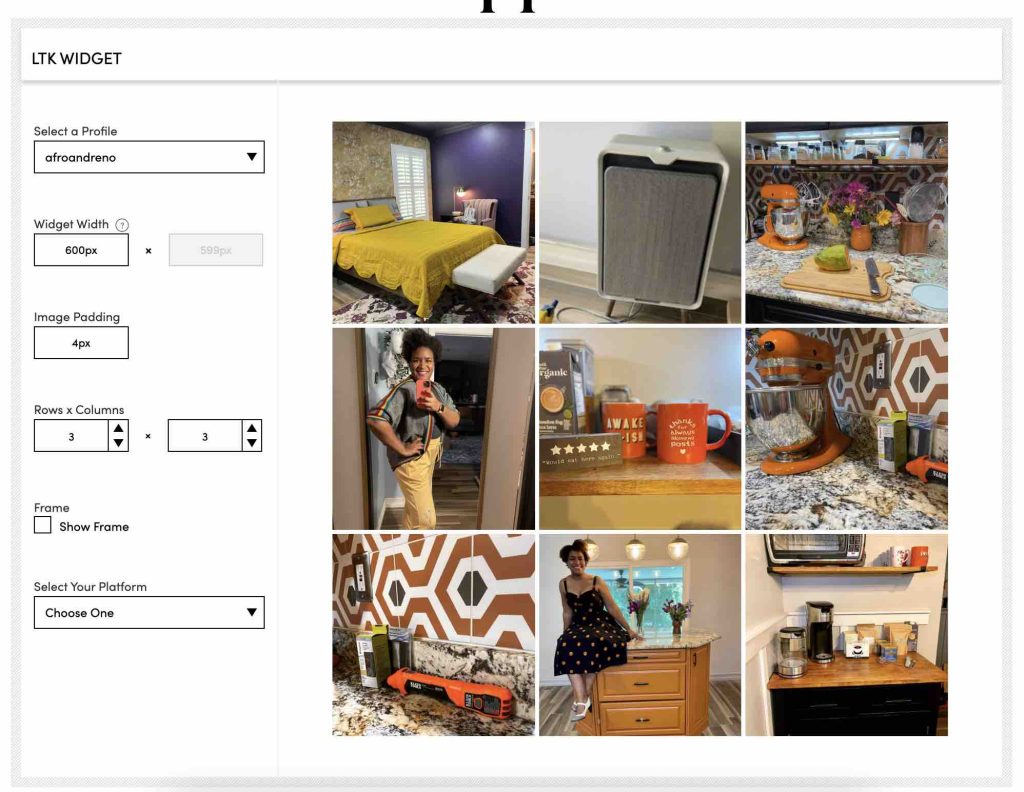
- You can see a preview of how your feed will look (see images below)
- Copy the code
Step 3: Add the Widget Code to Your Website
Using the Block Editor:
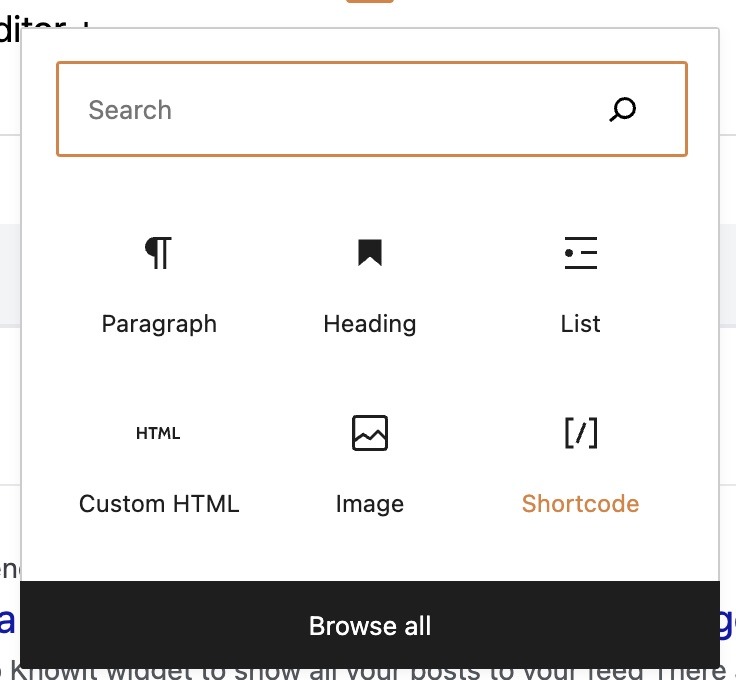
- add + and select “shortcode [/]”
- or search for “shortcode”.
- Then paste the code you copied.
Using Elementor:
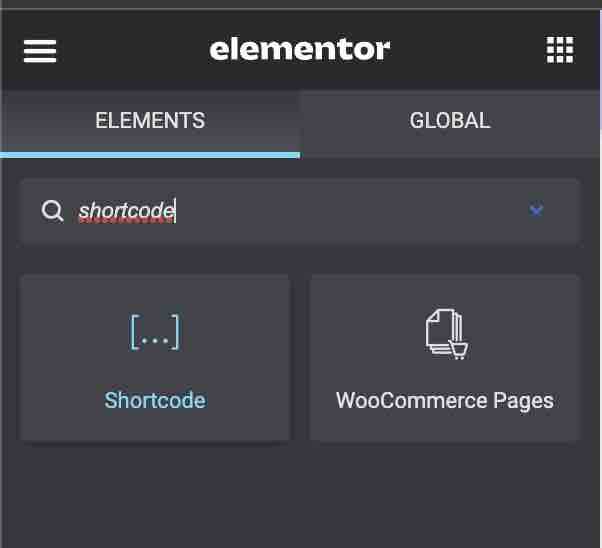
- Search for “shortcode” in the search bar
- Drag the the Shortcode element to your page
- Update the code in the editor
The results: An auto updating feed
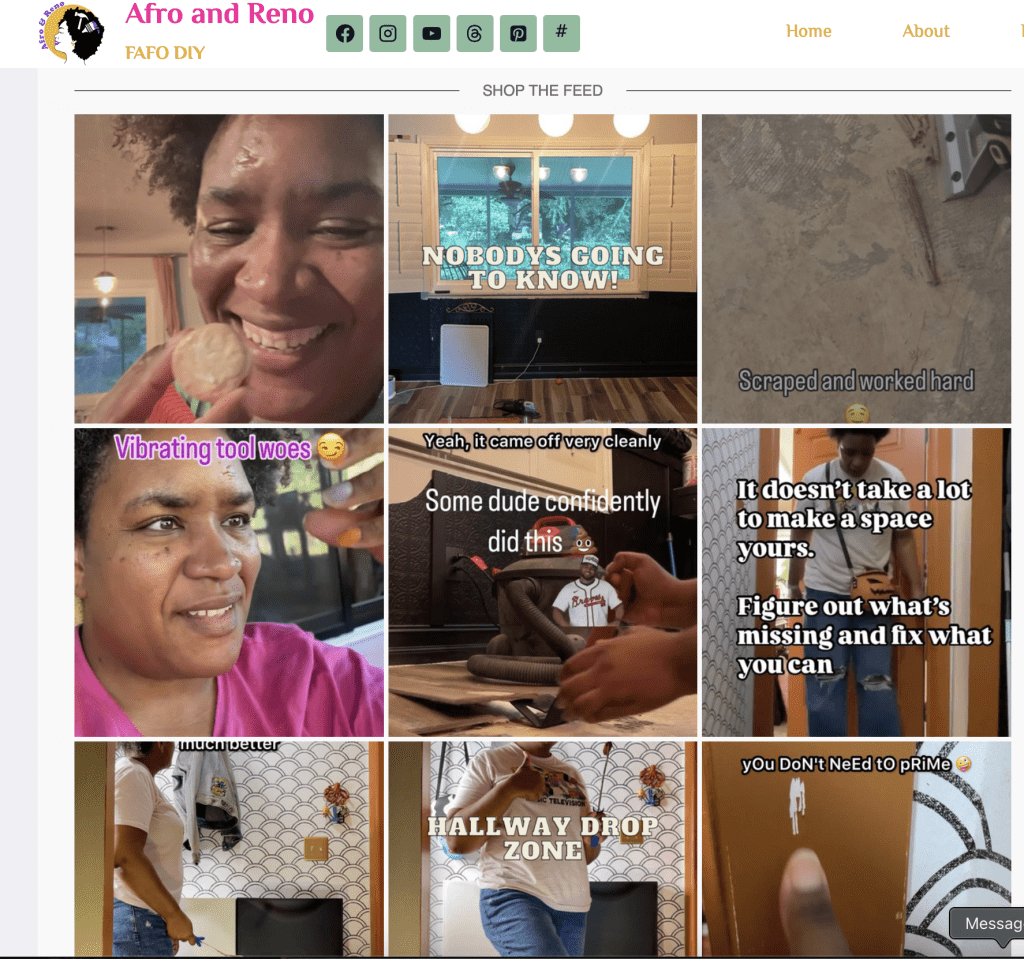
Here is the widget in action! No need to update the images and they will update automatically as you post to your LTK feed!
3 rows x 3 columns without frame
Alternate options
Widget with frame with 2 columns x 2 rows
One row view frame
LTK can also generate code to let you create a LookBook, Shop a Post, create your own Widgets and more! Explore the other Tools in the menu! Happy Blogging!